Gmail Login on CallOnReply
How to login with Gmail Accounts?
Gmail accounts require an app password instead of your regular password.
In order to login with Gmail follow following steps:
- Go to your Security Settings: https://myaccount.google.com/u/1/security
- Click on “Two Step Verification” and select GET STARTED”.
- If prompted, log in to your account again.
- Set up your phone for 2-Factor Authentication.
- Enter the code you receive on your phone to confirm the setup.
- Once confirmed, click on “TURN ON” to activate Two-Step Verification.
Create App Password
After you have enabled 2-step verification you can create an App Password.
- Go to your Security Settings: https://myaccount.google.com/u/1/security
- Click on “App passwords” or use this direct link: https://myaccount.google.com/apppasswords?pli=1
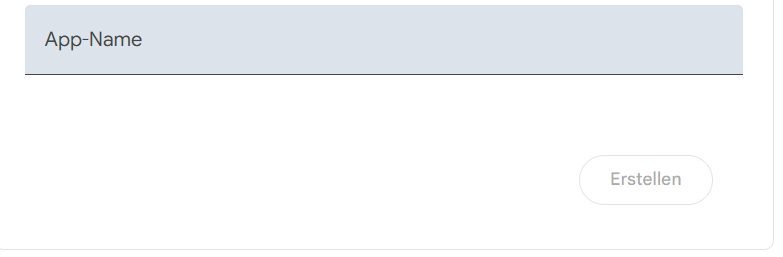
- Type in an “App Name”. You can type in “callonreply”, and click on “Create”
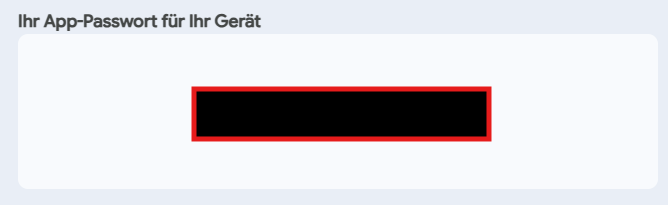
- A password will be generated and will look like this:
- Type this password into the password field in the callonreply app:
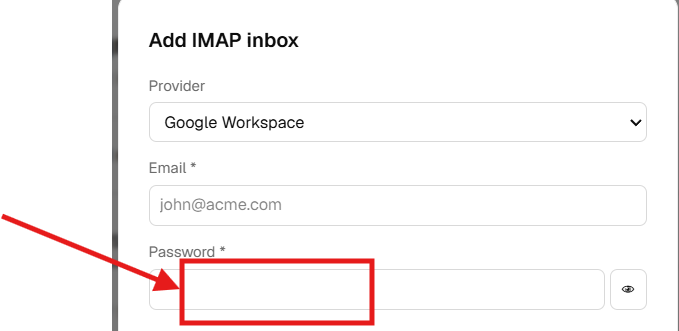


- In E-mail typ in your regular gmail e-mail adress
example: john@gmail.com
